For many Android users, downloading a game from Google Play feels simple and automatic. But if you have never used an Android phone before, or if you are switching from another platform, the process can feel confusing at first. Questions about Google accounts, payment methods, storage space, compatibility, and installation permissions are very common for beginners.
The good news is that downloading games on Android is usually straightforward once you understand how the system works. Whether you want to install a free puzzle game, a paid premium title, or a large online multiplayer game, this guide walks through everything step by step in a beginner-friendly way.
What Is Google Play?
Google Play, also called the Google Play Store, is Android's official app marketplace. It is where most Android users download mobile games, social media apps, streaming apps, productivity tools, and many other types of software.
Nearly every modern Android phone includes Google Play preinstalled. It works similarly to Apple's App Store on iPhones. Through Google Play, users can search for apps, install games, update software, buy paid apps, make in-game purchases, and manage subscriptions.
Before Downloading a Game
Before installing any game, there are several important things to check. Many installation problems happen because one of these requirements is missing.
Make Sure Your Phone Has Google Play Installed
Most Android phones sold internationally already include the Google Play Store. However, some devices do not. This is especially common on certain Huawei phones, some tablets, Android devices designed for specific countries, or custom Android systems.
To check, simply open your phone and look for the Play Store icon. Tap it to see whether it opens normally.
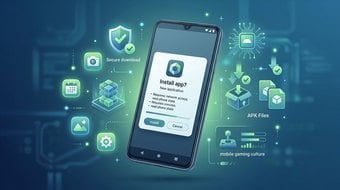
If Google Play is missing, some apps and games may still be installable through APK files, but the normal Play Store method will not work until Google services are installed.
Check Your Android Version
Not every game supports every Android version. Older phones sometimes cannot run newer games properly.
To check your Android version:
- Open Settings.
- Scroll to About Phone.
- Look for Android Version.
Modern games often require Android 10, Android 11, Android 12, or newer systems. Very old devices may struggle with large 3D games, online multiplayer titles, or high-performance graphics.
If a game is incompatible, Google Play usually displays a message such as: This app is not compatible with your device.
Make Sure You Have Enough Storage Space
Games can take up far more storage than many new users expect.
Simple puzzle games may use only a few hundred megabytes, while large mobile games can require several gigabytes of storage space. Some games continue growing after updates are installed.
Before downloading:
- Open Settings.
- Go to Storage.
- Check available space.
If storage is low, the phone may fail to install the game or run slowly afterward. Photos, videos, and unused apps are often the easiest things to remove when freeing storage space.
Connect to Wi-Fi if Possible
Many mobile games are very large downloads. Using mobile data can quickly consume monthly data limits.
Wi-Fi is recommended because downloads are faster, installation is more stable, and large updates are easier to manage. Some games may even require Wi-Fi before Google Play allows installation.
You Need a Google Account
A Google account is required for almost everything on Google Play.
Without a Google account, users cannot download games, install apps, save purchases, sync game progress, or make payments.
If you already use Gmail, YouTube, or Google Maps, then you probably already have a Google account.
If the phone does not already have one connected:
- Open Settings.
- Go to Accounts.
- Tap Add Account.
- Select Google.
- Sign in with your Gmail address.
If you do not have an account yet, Google allows users to create one for free during setup.
How to Download a Free Game
Free games are the easiest type to install and usually require no payment information.
First, open the Google Play Store by tapping the Play Store icon on your phone.
Use the search bar at the top to search for the game you want. Popular examples include Roblox, Subway Surfers, Candy Crush, and PUBG Mobile.
After selecting a game, the game page will display screenshots, ratings, reviews, file size, age rating, and developer information. Beginners should always check ratings and reviews before downloading unfamiliar games.
If the game is free, the button will say Install. Tap it once and the game will begin downloading automatically.
After installation finishes, the Install button changes to Play, and the game icon appears on the home screen or app drawer. The game is now ready to launch.
How to Download a Paid Game
Paid games work similarly, but users must complete a payment before installation begins.
Instead of an Install button, the game page displays a price such as:
- $0.99
- $4.99
- $9.99
Before buying paid games, Google Play needs a payment method connected to the account.
Common payment methods include:
- Credit cards
- Debit cards
- PayPal
- Google Play gift cards
- Carrier billing in some countries
To add payment information:
- Open Google Play.
- Tap the profile icon.
- Go to Payments & subscriptions.
- Select Payment methods.
Once added, future purchases become much faster.
To purchase the game:
- Tap the price button.
- Confirm payment.
- Complete password or fingerprint verification if requested.
Google Play will process the payment and automatically begin downloading the game.
Understanding In-Game Purchases
Many beginners think free games are completely free forever, but that is not always true.
Some games contain optional purchases such as premium currency, battle passes, cosmetic skins, subscriptions, or special items.
Google Play usually labels these games with notices like:
- Contains ads
- In-app purchases
Many players enjoy free games without spending money, but it is still helpful to understand how these systems work before downloading.
Why Some Games Cannot Be Downloaded
Sometimes users see errors or missing Install buttons. This can happen for several reasons.
The device may not be compatible because the phone is too old, has insufficient RAM, or uses unsupported hardware.
Some games launch only in specific countries first, so regional restrictions may temporarily block downloads.
Storage space can also prevent installation. Large games require both download space and installation space.
Internet problems are another common issue. Weak connections may interrupt downloads or cause endless loading screens.
How to Update Games
Games receive updates frequently for new content, events, bug fixes, performance improvements, and security patches.
To update games:
- Open Google Play.
- Tap the profile icon.
- Go to Manage apps & device.
- Select Updates available.
Users can also enable automatic updates so games update in the background automatically.
Is Google Play Safe?
For most users, yes.
Google Play includes several security systems designed to reduce malware and harmful apps. Google scans apps before publication and continuously monitors suspicious behavior through Play Protect.
Still, users should avoid fake copies of popular games, suspicious developers, or apps requesting unnecessary permissions.
Reading reviews and downloading from trusted developers greatly reduces risks.
What Happens After You Download a Game?
After installation, many games ask for permissions such as:
- Storage access
- Microphone access
- Notifications
- Contacts
- Location
Not every permission is dangerous, but users should understand why a game requests them.
For example, voice chat games may require microphone access, while multiplayer games may request storage permissions for downloading updates.
Permissions can always be changed later through Android settings.
Google Play vs APK Downloads
Some Android users eventually install games through APK files instead of Google Play.
APK downloads are commonly used for early-access versions, region-locked games, older versions, or devices without Google Play support.
However, for beginners, Google Play is usually the easiest and safest starting point because installation is automatic, updates are simple, security scanning is built in, and payments are integrated directly into the platform.
Once users become more familiar with Android, many eventually explore APK installation as well because it offers greater flexibility and access to apps outside the standard Play Store ecosystem.