Trying to download an app from Google Play Store should be simple, but sometimes the download does not start, gets stuck on pending, stops halfway, or fails before installation. This can be frustrating, especially when you are trying to install an important app or game.

The good news is that most Google Play download problems come from common causes: weak internet, low storage, account issues, cache problems, outdated Android software, or device compatibility limits. You usually do not need to reset your phone right away. Start with simple checks first.
Check Your Internet Connection First
A weak connection is one of the most common reasons Google Play cannot download apps. Google recommends checking Wi-Fi or mobile data first when downloads fail. A strong Wi-Fi connection is usually better, especially for large apps or games.
Try these steps:
-
Turn Wi-Fi off and on again.
-
Switch from mobile data to Wi-Fi.
-
Move closer to your router.
-
Restart your router if Wi-Fi is unstable.
-
Turn airplane mode on, wait a few seconds, then turn it off.
-
Open a website to confirm the internet is working.
If other apps also cannot connect to the internet, the problem is probably your connection, not Google Play.
Check Your Storage Space
Apps need space to download and install. If your phone storage is almost full, Google Play may fail even before the app is fully downloaded. Large games may need much more space than the download size shown on the app page because they may unpack files or download extra data after installation.
To fix this:
-
Delete unused apps.
-
Remove old videos or large files.
-
Clear unnecessary downloads.
-
Move photos to cloud storage or a computer.
-
Empty the trash folder in your gallery or file manager if your phone has one.
After freeing space, restart Google Play and try again.
Restart Google Play Store
Sometimes the Play Store app itself gets stuck. Close it fully and open it again.
On many Android phones, you can swipe up from the bottom, open the recent apps screen, and swipe Google Play away. Then open Google Play Store again and retry the download.
If that does not help, restart your phone. This refreshes background services and can fix simple temporary errors.
Clear Google Play Store Cache
Cache files help apps load faster, but old or broken cache data can cause download problems. Google says clearing the Play Store cache is a common solution when downloads do not work correctly.
To clear cache:
-
Open Settings.
-
Go to Apps.
-
Find Google Play Store.
-
Tap Storage.
-
Tap Clear cache.
-
Open Google Play Store again.
If the problem continues, you can also clear data, but be careful. Clearing data may reset some Play Store settings, such as parental controls or password protection.
Check Google Play Services
Google Play Store depends on Google Play Services. If Google Play Services is outdated or broken, downloads may fail, apps may not update, or your Google account may not sync properly.
Go to Settings, open Apps, and search for Google Play Services. If an update is available through Google Play, install it. You can also clear the cache for Google Play Services if normal Play Store cache clearing does not work.
Problems with Google Play Services may cause:
-
Downloads stuck on pending
-
Apps not updating
-
Google login problems
-
Play Store not opening
-
Sync errors
Look for Download Pending Problems
"Download pending" is one of the most common Google Play issues. It usually means the download is waiting behind another task or Google Play is stuck.
Try this:
-
Cancel other app updates.
-
Pause and restart the download.
-
Turn off auto-update temporarily.
-
Restart your phone.
-
Clear the Play Store cache.
-
Make sure your internet is stable.
If many apps are updating at once, Google Play may wait before starting your new download.
Check Your Android Version
Some apps require a newer Android version. If your phone is old, Google Play may block the install or show a message saying the app is not compatible with your device.
Open Settings, go to System, and check for software updates. The exact menu name depends on your phone brand. Samsung, Xiaomi, OPPO, Vivo, Motorola, and other Android phones may use slightly different wording.
If no system update is available and the app requires a newer Android version, you may need to use a different app, a lighter version, or a newer device.
Check Device Compatibility
Even if your Android version is new enough, some apps may not support your device. The developer may limit the app based on processor, screen size, country, hardware features, or performance requirements.
For example, a high-graphics game may not support older phones with limited memory. A camera app may require certain camera features. A banking app may block rooted or modified devices.
If Google Play says the app is not available for your device, it is usually not a normal download error. It means your device does not meet the app's requirements.
Check Region Restrictions
Some apps and games are not available in every country. If you recently moved, changed your Google account country, or use a device from another region, the app may not appear or may not install.
A region restriction is different from a technical error. Clearing cache may not fix it. You may need to use an app that is available in your region or check the developer's official website for supported countries.
Check Your Google Account
Google Play needs a working Google account. If your account has sync problems, payment profile issues, parental control limits, or country mismatch problems, downloads may fail.
Try these steps:
-
Make sure you are signed in.
-
Check that account sync is working.
-
Remove and re-add the Google account only if simpler fixes fail.
-
Check parental controls if the app is age-restricted.
-
Check payment settings if the app is paid.
For free apps, you usually do not need a payment method, but some account settings can still affect downloads.
What to Do If Google Play Still Will Not Download
If nothing works, use this order:
-
Check internet.
-
Check storage.
-
Restart the phone.
-
Clear Google Play Store cache.
-
Clear Google Play Services cache.
-
Check Android system updates.
-
Cancel stuck downloads.
-
Check device compatibility.
-
Check region restrictions.
-
Try again later.
Most download issues are fixed before the last step. If Google Play still does not work after all of this, the problem may be related to your device firmware, Google account, or a temporary Play Store service issue.
A Quick Fix Checklist for Google Play Problems
Google Play download problems are annoying, but they are usually fixable. Start with internet and storage because those are the easiest causes. Then move to cache, updates, Google Play Services, and compatibility checks.
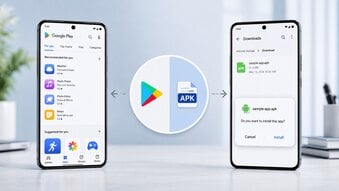
Do not rush to download random APK files just because Google Play fails once. Fixing the Play Store problem is usually safer than installing apps from unknown sources. If you do need an APK, use only trusted sources and avoid sensitive apps like banking, payment, or password tools.